Terminal

Console

The console is a text-based interface where a program can display information and receive input from the user. It is one of the simplest ways for a program to communicate with the outside world.
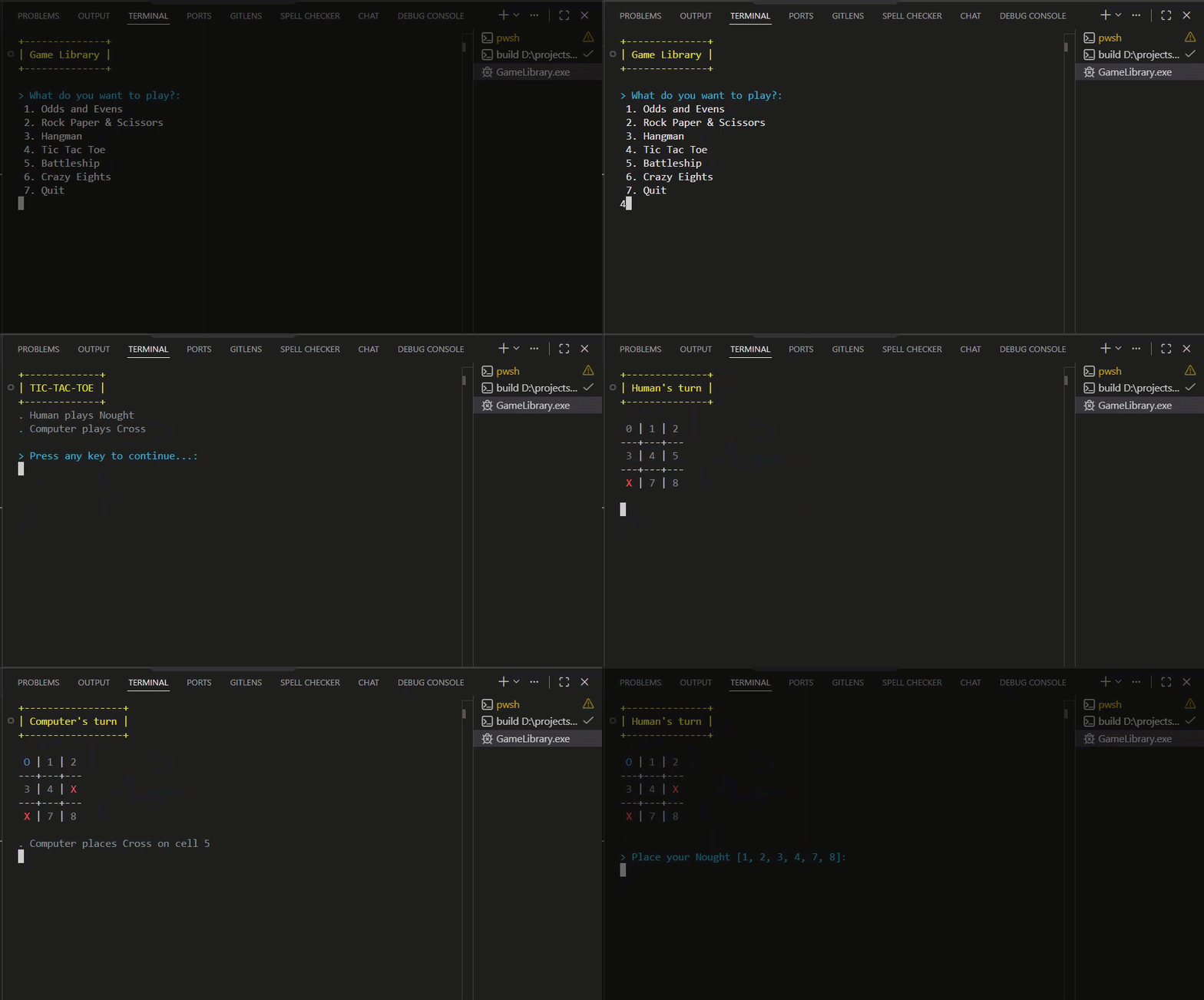
Console Application Demo

When you run a program in an IDE, the console appears as a panel where you can read the program’s output and type responses when the program asks for them.

Output#

Output is information the program sends to the console. You use a built-in function to print a string to the console:

Run a C# Project in Visual Studio Code

This procedure walks you through running a C# console program in Visual Studio Code using the terminal.

Prerequisites#

Steps#

  1. Open Visual Studio Code with your project folder open.
  2. Open the built-in terminal with Ctrl+\`` (Windows/Linux) or Cmd+`` (Mac). You can also go to View → Terminal.
  3. Make sure the terminal is in your project folder — you should see the folder name in the terminal prompt. If not, navigate to it with cd folder-name.
  4. Save any unsaved changes with Ctrl+S (Windows/Linux) or Cmd+S (Mac).
  5. Run the program with:
dotnet run

Result#

The program builds and runs. Its output appears in the terminal directly below the dotnet run command.